
Getting started with service workers
This document explains how to enable Angular service worker support in projects that you created with the Angular CLI. It then uses an example to show you a service worker in action, demonstrating loading and basic caching.
Adding a service worker to your project
To set up the Angular service worker in your project, run the following CLI command:
ng add @angular/pwaThe CLI configures your application to use service workers with the following actions:
which specifies the caching behaviors and other settings.
- Includes a link to add the
manifest.webmanifestfile - Adds a meta tag for
theme-color
- Adds the
@angular/service-workerpackage to your project. - Enables service worker build support in the CLI.
- Imports and registers the service worker with the application's root providers.
- Updates the
index.htmlfile: - Installs icon files to support the installed Progressive Web App (PWA).
- Creates the service worker configuration file called
ngsw-config.json,
Now, build the project:
ng buildThe CLI project is now set up to use the Angular service worker.
Service worker in action: a tour
This section demonstrates a service worker in action, using an example application. To enable service worker support during local development, use the production configuration with the following command:
ng serve --configuration=productionAlternatively, you can use the http-server package from npm, which supports service worker applications. Run it without installation using:
npx http-server -p 8080 -c-1 dist/<project-name>/browserThis will serve your application with service worker support at http://localhost:8080.
Initial load
With the server running on port 8080, point your browser at http://localhost:8080. Your application should load normally.
Simulating a network issue
To simulate a network issue, disable network interaction for your application.
In Chrome:
- Select Tools > Developer Tools (from the Chrome menu located in the top right corner).
- Go to the Network tab.
- Select Offline in the Throttling dropdown menu.
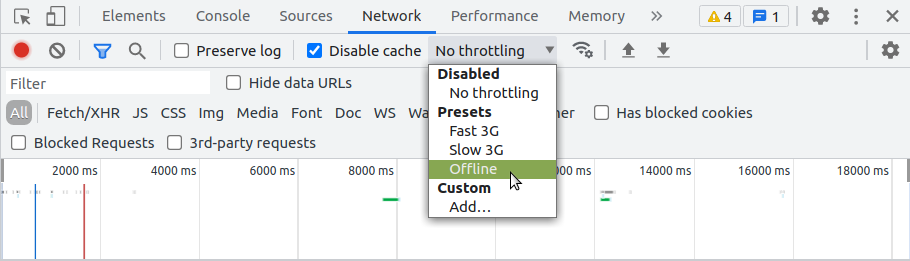
Now the application has no access to network interaction.
For applications that do not use the Angular service worker, refreshing now would display Chrome's Internet disconnected page that says "There is no Internet connection".
With the addition of an Angular service worker, the application behavior changes. On a refresh, the page loads normally.
Look at the Network tab to verify that the service worker is active.

This means that the resources are not being loaded from the network. Instead, they are being loaded from the service worker's cache.
What's being cached?
Notice that all of the files the browser needs to render this application are cached. The ngsw-config.json boilerplate configuration is set up to cache the specific resources used by the CLI:
See the documentation for ng build for more information about these options.
index.htmlfavicon.ico- Build artifacts (JS and CSS bundles)
- Anything under
assets - Images and fonts directly under the configured
outputPath(by default./dist/<project-name>/) orresourcesOutputPath.
Making changes to your application
Now that you've seen how service workers cache your application, the next step is understanding how updates work. Make a change to the application, and watch the service worker install the update:
This keeps the incognito and the cache state alive during your test.
- If you're testing in an incognito window, open a second blank tab.
This should also close the Developer Tools.
- Close the application tab, but not the window.
- Shut down
http-server(Ctrl-c). - Open
src/app/app.component.htmlfor editing. - Change the text
Welcome to {{title}}!toBienvenue à {{title}}!. - Build and run the server again:
ng build
npx http-server -p 8080 -c-1 dist/<project-name>/browser
Updating your application in the browser
Now look at how the browser and service worker handle the updated application.
What happens?
- Open http://localhost:8080 again in the same window.

What went wrong? Nothing, actually! The Angular service worker is doing its job and serving the version of the application that it has installed, even though there is an update available. In the interest of speed, the service worker doesn't wait to check for updates before it serves the application that it has cached.
Look at the http-server logs to see the service worker requesting /ngsw.json.
``text [2023-09-07T00:37:24.372Z] "GET /ngsw.json?ngsw-cache-bust=0.9365263935102124" "Mozilla/5.0 (Macintosh; Intel Mac OS X 10157) AppleWebKit/537.36 (KHTML, like Gecko) Chrome/115.0.0.0 Safari/537.36" ``
This is how the service worker checks for updates.
- Refresh the page.

The service worker installed the updated version of your application in the background, and the next time the page is loaded or reloaded, the service worker switches to the latest version.
Service worker configuration
Angular service workers support comprehensive configuration options through the SwRegistrationOptions interface, providing fine-grained control over registration behavior, caching, and script execution.
Enabling and disabling service workers
The enabled option controls whether the service worker will be registered and related services will attempt to communicate with it.
import {ApplicationConfig, isDevMode} from '@angular/core';
import {provideServiceWorker} from '@angular/service-worker';

export const appConfig: ApplicationConfig = {
  providers: [
    provideServiceWorker('ngsw-worker.js', {
      enabled: !isDevMode(), // Disable in development, enable in production
    }),
  ],
};
Cache control with updateViaCache
The updateViaCache option controls how the browser consults the HTTP cache during service worker updates. This provides fine-grained control over when the browser fetches updated service worker scripts and imported modules.
export const appConfig: ApplicationConfig = {
  providers: [
    provideServiceWorker('ngsw-worker.js', {
      enabled: !isDevMode(),
      updateViaCache: 'imports',
    }),
  ],
};
The updateViaCache option accepts the following values:
'imports'- The HTTP cache is consulted for the service worker script's imported scripts, but not for the service worker script itself'all'- The HTTP cache is consulted for both the service worker script and its imported scripts'none'- The HTTP cache is not consulted for the service worker script or its imported scripts
ES Module support with type option
The type option enables specifying the script type when registering service workers, providing support for ES module features in your service worker scripts.
export const appConfig: ApplicationConfig = {
  providers: [
    provideServiceWorker('ngsw-worker.js', {
      enabled: !isDevMode(),
      type: 'module', // Enable ES module features
    }),
  ],
};
The type option accepts the following values:
'classic'(default) - Traditional service worker script execution. ES module features such asimportandexportare NOT allowed in the script'module'- Registers the script as an ES module. Allows use ofimport/exportsyntax and module features
Registration scope control
The scope option defines the service worker's registration scope, determining what range of URLs it can control.
export const appConfig: ApplicationConfig = {
  providers: [
    provideServiceWorker('ngsw-worker.js', {
      enabled: !isDevMode(),
      scope: '/app/', // Service worker will only control URLs under /app/
    }),
  ],
};- Controls which URLs the service worker can intercept and manage
- By default, the scope is the directory containing the service worker script
- Used when calling
ServiceWorkerContainer.register()
Registration strategy configuration
The registrationStrategy option defines when the service worker will be registered with the browser, providing control over the timing of registration.
export const appConfig: ApplicationConfig = {
  providers: [
    provideServiceWorker('ngsw-worker.js', {
      enabled: !isDevMode(),
      registrationStrategy: 'registerWhenStable:30000',
    }),
  ],
};
Available registration strategies:
'registerWhenStable:timeout'(default:'registerWhenStable:30000') - Register as soon as the application stabilizes (no pending micro-/macro-tasks) but no later than the specified timeout in milliseconds'registerImmediately'- Register the service worker immediately'registerWithDelay:timeout'- Register with a delay of the specified timeout in milliseconds
// Register immediately
export const immediateConfig: ApplicationConfig = {
  providers: [
    provideServiceWorker('ngsw-worker.js', {
      enabled: !isDevMode(),
      registrationStrategy: 'registerImmediately',
    }),
  ],
};

// Register with a 5-second delay
export const delayedConfig: ApplicationConfig = {
  providers: [
    provideServiceWorker('ngsw-worker.js', {
      enabled: !isDevMode(),
      registrationStrategy: 'registerWithDelay:5000',
    }),
  ],
};
You can also provide an Observable factory function for custom registration timing:
import {timer} from 'rxjs';

export const customConfig: ApplicationConfig = {
  providers: [
    provideServiceWorker('ngsw-worker.js', {
      enabled: !isDevMode(),
      registrationStrategy: () => timer(10_000), // Register after 10 seconds
    }),
  ],
};
More on Angular service workers
You might also be interested in the following: